
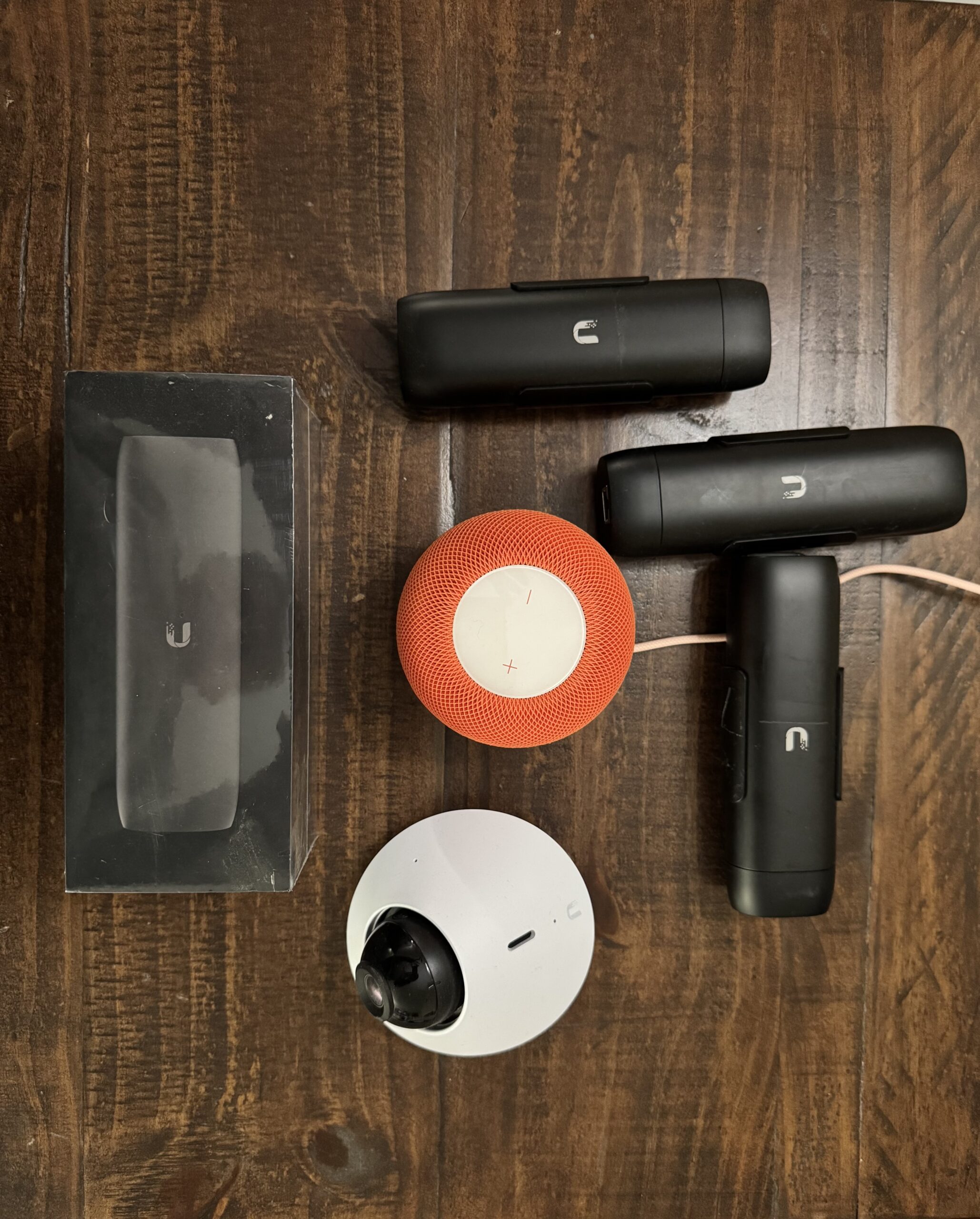
If you’re running UniFi Protect cameras and a Home Assistant setup, you’re sitting on a combination that most people don’t realize is possible: full camera integration, motion-triggered automations, and the ability to pull up any camera view just by asking Siri. Here’s how it all works together.
The Stack: UniFi Protect + Home Assistant + HomeKit
UniFi Protect is Ubiquiti’s camera and NVR ecosystem — the same platform we build our client networks around. It’s rock solid, local-first, and integrates beautifully with Home Assistant via the official UniFi Protect integration. Once connected, every camera, doorbell, and motion sensor on your Protect system shows up in Home Assistant as a fully controllable entity.
From there, Home Assistant bridges everything to Apple HomeKit through its built-in HomeKit bridge. That means your UniFi cameras become HomeKit cameras — and Siri can access them directly.
Setting Up UniFi Protect in Home Assistant
The setup is surprisingly straightforward. In Home Assistant, go to Settings → Integrations → Add Integration and search for UniFi Protect. You’ll need your Protect NVR’s local IP address and a local user account with access to the system.
Once connected, Home Assistant pulls in every device on your Protect system including cameras, sensors, and smart doorbells. Each camera gets a camera entity with a live RTSP stream, plus separate entities for motion detection, smart detection (person, vehicle, animal), and ring events on doorbells.
Motion Detection as an Automation Trigger
This is where it gets powerful. Because motion events from UniFi Protect flow into Home Assistant as state changes, you can use them as automation triggers. In my setup, when a person is detected on the back porch camera, the living room TV automatically switches to that camera feed — no button presses, no fumbling with remotes.
You can do the same with vehicle detection, doorbell rings, or even specific zones within a camera’s field of view. UniFi Protect’s smart detection is genuinely good, and having it trigger real automations makes it far more useful than just passive recording.
Bridging to HomeKit: Siri Viewports
Home Assistant’s HomeKit bridge exposes your cameras to Apple HomeKit automatically. Once your cameras appear in the Home app, you can ask Siri to show any of them on an Apple TV, iPad, or iPhone.
Some examples of what this looks like in practice:
- “Hey Siri, show me the front door camera” — pulls up the doorbell camera on your Apple TV instantly.
- “Hey Siri, show the driveway” — switches your TV to the driveway camera view.
- “Hey Siri, show all cameras” — displays a grid view of your cameras in the Home app.
The key is making sure your camera names in Home Assistant are simple and recognizable — Siri matches on the name you give each camera entity. “Front Door”, “Driveway”, “Back Porch” work much better than “G4 Bullet 01”.
Stream Quality and Local Processing
One thing worth knowing: Home Assistant streams camera feeds using RTSP directly from the Protect NVR over your local network. This means low latency, no cloud dependency, and no subscription required. The stream quality depends on your camera settings in Protect — I run the high-quality stream for recording and a lower-quality stream for live previews in dashboards.
For HomeKit specifically, Home Assistant transcodes the stream to HomeKit’s required format (H.264 with specific parameters). This is handled automatically but does use some CPU on whatever hardware Home Assistant is running on. On a Raspberry Pi 4 it handles 4-6 simultaneous streams without issue.
Why This Beats a Standalone Camera System
Most consumer camera systems — Ring, Nest, Arlo — are cloud-dependent and locked into their own apps. UniFi Protect keeps everything local. Combined with Home Assistant and HomeKit, you get the automation intelligence of a professional system with the ease of use of “Hey Siri, show me the backyard.”
We set this exact stack up for clients through The UI Guys. If you’re building a new home or retrofitting an existing one with cameras, this is the approach we recommend — local, fast, private, and fully integrated with the rest of your smart home.